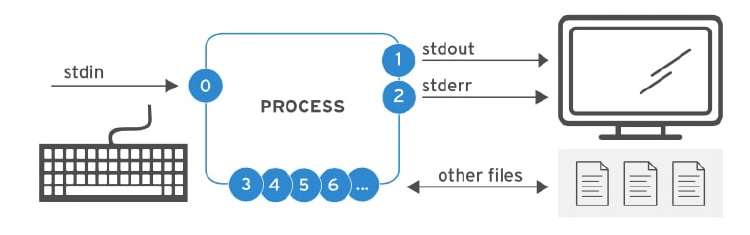
Everything in Linux is a file
Sorts of Files in Linux
Regular files: they contain normal data
– Text files
– Executable files or programs
– Input for a program or output from a program
Directories: files that are lists of other files.
Special files: the mechanism used for input and output. Most special files are in /dev, we will discuss them later.
Links: a system to make a file or directory visible in multiple parts of the system’s file tree. We will talk about links in detail.
(Domain) sockets: a special file type, similar to TCP/IP sockets, providing inter-process networking protected by the file system’s access control.
Named pipes: act more or less like sockets and form a way for processes to communicate with each other, without using network socket semantics.
The first commands we used to navigate the files in Linux is ls -l. The -l option is to display the file details (long listing format). The first character of each line displays the file type.
| Symbol | Meaning |
|---|---|
| – | Regular file |
| d | Directory |
| l | Link |
| c | Special file |
| s | Socket |
| p | Named pipe |
| b | Block device |
└─$ ls -l
total 1364
lrwxrwxrwx  1 root root       7 Jun  8 14:53 bin -> usr/bin
drwxr-xr-x  1 root root    4096 May 25 22:54 boot
drwxr-xr-x  1 root root    4096 Nov 18 00:06 dev
drwxr-xr-x  1 root root    4096 Nov 18 00:06 etc
drwxr-xr-x  1 root root    4096 Jul 18 20:36 home
-rwxr-xr-x  1 root root 1392928 Nov  7 19:22 init

drwxr-xr-x  1 root root    4096 Jun  8 14:53 media
drwxr-xr-x  1 root root    4096 Jul 18 20:33 mnt
drwxr-xr-x  1 root root    4096 Jun  8 14:53 opt
dr-xr-xr-x  9 root root       0 Nov 18 00:06 proc
drwx------  1 root root    4096 Jun  8 14:54 root
drwxr-xr-x  1 root root    4096 Nov 18 00:06 run
lrwxrwxrwx  1 root root       8 Jun  8 14:53 sbin -> usr/sbin
drwxr-xr-x  1 root root    4096 Jun  8 14:53 srv
dr-xr-xr-x 12 root root       0 Nov 18 00:06 sys
drwxrwxrwt  1 root root    4096 Jul 18 21:24 tmp
drwxr-xr-x  1 root root    4096 Jun  8 14:53 usr
drwxr-xr-x  1 root root    4096 Jun  8 14:53 var
The -F option is to display the File type. The symbol shows the file type of a file.
└─$ ls -F
bin@   dev/  home/  lib@    lib64@   media/  opt/   root/  sbin@  sys/  usr/
boot/  etc/  init*  lib32@  libx32@  mnt/    proc/  run/   srv/   tmp/  var/
Get confused with the commands? Try read the “Manual” (man ls) or “Information Page” (info ls).
Hints: To read next page, just press [Space bar] and press [q] to quit.
To find out more about the kind of data we are dealing with, we use the file command. By applying certain tests that check properties of a file in the file system, magic numbers and language tests, file tries to make an educated guess about the format of a file. Some examples:
mike:~> file Documents/
Documents/: directory

mike:~> file high-tech-stats.pdf
high-tech-stats.pdf: PDF document, version 1.2


mike:~> file cv.txt
cv.txt: ISO-8859 text

mike:~> file image.png
image.png: PNG image data, 616 x 862, 8-bit grayscale, non-interlaced

mike:~> file figure
figure: ASCII text

mike:~> file me+tux.jpg
me+tux.jpg: JPEG image data, JFIF standard 1.01, resolution (DPI),
            "28 Jun 1999", 144 x 144

mike:~> file slide1
slide1: HTML document text

mike:~> file template.xls
template.xls: Microsoft Office Document

mike:~> file abook.ps
abook.ps: PostScript document text conforming at level 2.0

mike:~> file /dev/log
/dev/log: socket

mike:~> file /dev/hda
/dev/hda: block special (3/0)
The file command has a series of options, among others the -z (zip) option to look into compressed files. See info file for a detailed description. Keep in mind that the results of file are not absolute, it is only a guess. In other words, file can be tricked.
Filesystem Hierarchy Standard (FHS)
The Filesystem Hierarchy Standard (FHS) defines the directory structure and directory contents in Linux distributions
In the FHS, all files and directories appear under the root directory ( / ), even if they are stored on different physical or virtual devices. As Linux represent everything as files, it is important to understand the FHS.

OS related files
- Essential Boot Files
- /boot : Bootloader files; Holds the most basic files required for booting the OS (e.g. kernels, initrd)
- /dev : Device files; Everything in Linux is a file – keyboards, monitors, speakers, printers, USB (e.g. /dev/null, /dev/disk0, /dev/sda1, /dev/tty, /dev/random)
- /sbin : Essential system binaries; Contains programs required for the boot loader and system administration (e.g. fsck, init, route)
- /bin : Essential command binaries that needs to be available in single-user mode; Contains essential commands (e.g. bash, cp, mv, cat, ls) accessible by all users
- /lib : Kernel modules and libraries; Contains libraries required for binaries at /bin and /sbin
- /etc : Configuration files; Contains editable text configuration files for the bootloader and applications. This directory contains data similar to those in the Control Panel in Windows
- /proc : Virtual filesystem providing process and kernel information as file (procfs); Everything in Linux is a file -Contains run-time system files, provides a window into the workings of the kernel
- Others
- /mnt : Available filesystems; Temporarily mounted filesystems
- /var : Variable files; Files that programs can write to during system running – logs, spool directories, temporary e-mail files and temp files
- /tmp : Temporary files; Temporary files used by programs. Files are cleared during boot or shutdown.
- /srv : Site-specific files; site-specific files served by system for protocols such as ftp, www, cvs
Software related files
- /usr/bin : User programs managed by distribution package manager
- /usr/local/bin : Contains programs that a user can run
- /usr/local/sbin : Contains administration programs for system administrators
- /usr : Should contain only static data
- /opt : Packages which are self-contained
User related files
- /home : User-specific directories. Contains user-specific settings.
Other files
- /media : Similar to /mnt, but for removable devices
- /lost+found : Corrupt files found in filesystem checks (fsck) after improper shutdown recovers into this directory
File Managers
We only discuss text tools available to the shell, since the graphical tools are very intuitive and have the same look and feel as the well known point-and-click MS Windows-style file managers, including graphical help functions and other features you expect from this kind of applications. The following list is an overview of the most popular file managers for GNU/Linux. Most file managers can be started from the menu of your desktop manager, or by clicking your home directory icon, or from the command line, issuing these commands:
- nautilus: The default file manager in Gnome, the GNU desktop. Excellent documentation about working with this tool can be found at http://www.gnome.org.
- konqueror: The file manager typically used on a KDE desktop. The handbook is at http://docs.kde.org.
- mc: Midnight Commander, the Unix file manager after the fashion of Norton Commander. All documentation available from http://gnu.org/directory/ or a mirror, such as http://www.ibiblio.org.
Create Directory and File
A way of keeping things in place is to give certain files specific default locations by creating directories and subdirectories (or folders and sub-folders if you wish). This is done with the mkdir command. Creating directories and subdirectories in one step is done using the mkdir –p (parents) option.
To create an empty file, you can use the touch command.
Working with the file system
Moving Files is done with the mv command.
Copying Files and Directories is done with the cp command. A useful option is cp -R (Recursive copy) to copy all underlying files and subdirectories.
Removing Files is done with the rm command. rmdir is to remove empty directories.
The rm command also has rm -r (recursive) option for removing non-empty directories with all their subdirectories. However, it is dangerous for newbies to execute this command and causes disaster to the system.
Change Directory is done with the cd command and pwd command will print out the current working directory.
Finding files
These are the real tools, used when searching other paths beside those listed in the search path. The find tool, known from UNIX, is very powerful, which may be the cause of a somewhat more difficult syntax. GNU find, however, deals with the syntax problems. This command not only allows you to search file names, it can also accept file size, date of last change and other file properties as criteria for a search. The most common use is for finding file names:
find <path> -name <searchstring>This can be interpreted as “Look in all files and subdirectories contained in a given path, and print the names of the files containing the search string in their name” (not in their content).
Another application of find is for searching files of a certain size, as in the example below, where user peter wants to find all files in the current directory or one of its subdirectories, that are bigger than 5 MB:
find . -size +5000kIf you dig in the man pages, you will see that find can also perform operations on the found files. A common example is removing files. It is best to first test without the -exec option that the correct files are selected, after that the command can be rerun to delete the selected files. Below, we search for files ending in .tmp:
find . -name "*.tmp" -exec rm {} \;Later on (in 1999 according to the man pages, after 20 years of find), locate was developed. This program is easier to use, but more restricted than find, since its output is based on a file index database that is updated only once every day. On the other hand, a search in the locate database uses less resources than find and therefore shows the results nearly instantly.
Most Linux distributions use slocate these days, security enhanced locate, the modern version of locate that prevents users from getting output they have no right to read. The files in root‘s home directory are such an example, these are not normally accessible to the public. A user who wants to find someone who knows about the C shell may issue the command locate .cshrc, to display all users who have a customized configuration file for the C shell. Supposing the users root and jenny are running C shell, then only the file /home/jenny/.cshrc will be displayed, and not the one in root‘s home directory. On most systems, locate is a symbolic link to the slocate program:
billy:~> ls -l /usr/bin/locate
lrwxrwxrwx 1 root slocate  7 Oct 28 14:18 /usr/bin/locate -> slocate*
User tina could have used locate to find the application she wanted:
tina:~> locate acroread
/usr/share/icons/hicolor/16x16/apps/acroread.png
/usr/share/icons/hicolor/32x32/apps/acroread.png
/usr/share/icons/locolor/16x16/apps/acroread.png
/usr/share/icons/locolor/32x32/apps/acroread.png
/usr/local/bin/acroread
/usr/local/Acrobat4/Reader/intellinux/bin/acroread
/usr/local/Acrobat4/bin/acroread
Directories that don’t contain the name bin can’t contain the program – they don’t contain executable files. There are three possibilities left. The file in /usr/local/bin is the one tina would have wanted: it is a link to the shell script that starts the actual program:
tina:~> file /usr/local/bin/acroread
/usr/local/bin/acroread: symbolic link to ../Acrobat4/bin/acroread

tina:~> file /usr/local/Acrobat4/bin/acroread
/usr/local/Acrobat4/bin/acroread: Bourne shell script text executable

tina:~> file /usr/local/Acrobat4/Reader/intellinux/bin/acroread
/usr/local/Acrobat4/Reader/intellinux/bin/acroread: ELF 32-bit LSB
executable, Intel 80386, version 1, dynamically linked (uses
shared libs), not stripped
The grep command
A simple but powerful program, grep is used for filtering input lines and returning certain patterns to the output. There are literally thousands of applications for the grep program. In the example below, jerry uses grep to see how he did the thing with find:
jerry:~> grep -a find .bash_history
find . -name userinfo
man find
find ../ -name common.cfg
Also useful in these cases is the search function in bash, activated by pressing Ctrl+R at once, such as in the example where we want to check how we did that last find again:
thomas ~> ^R
(reverse-i-search)`find’: find `/home/thomas` -name *.xmlType your search string at the search prompt. The more characters you type, the more restricted the search gets. This reads the command history for this shell session (which is written to .bash_history in your home directory when you quit that session). The most recent occurrence of your search string is shown. If you want to see previous commands containing the same string, type Ctrl+R again.
View File Content
Apart from cat, which really doesn’t do much more than sending files to the standard output, there are other tools to view file content.
The easiest way of course would be to use graphical tools instead of command line tools. In the introduction we already saw a glimpse of an office application, OpenOffice.org. Other examples are the GIMP (start up with gimp from the command line), the GNU Image Manipulation Program; xpdf to view Portable Document Format files (PDF); GhostView (gv) for viewing PostScript files; Mozilla/FireFox, links (a text mode browser), Konqueror, Opera and many others for web content; XMMS, CDplay and others for multimedia file content; AbiWord, Gnumeric, KOffice etc. for all kinds of office applications and so on. There are thousands of Linux applications; to list them all would take days.
Instead we keep concentrating on shell- or text-mode applications, which form the basics for all other applications. These commands work best in a text environment on files containing text. When in doubt, check first using the file command.
Text file: less is more
Undoubtedly you will hear someone say this phrase sooner or later when working in a UNIX environment. A little bit of UNIX history explains this:
- First there was cat. Output was streamed in an uncontrollable way.
- Then there was pg, which may still be found on older UNIXes. This command puts text to the output one page at the time.
- The more program was a revised version of pg. This command is still available on every Linux system.
- less is the GNU version of more and has extra features allowing highlighting of search strings, scrolling back etc. The syntax is very simple: less <name_of_file>
The head and tail commands
These two commands display the n first/last lines of a file respectively. To see the last ten commands entered:
tony:~> tail -10 .bash_history
locate configure | grep bin
man bash
cd
xawtv &
grep usable /usr/share/dict/words
grep advisable /usr/share/dict/words
info quota
man quota
echo $PATH
frm
head works similarly. The tail command has a handy feature to continuously show the last n lines of a file that changes all the time. The tail -f (forever) option is often used by system administrators to check on log files.
Special Characters
Characters that have a special meaning to the shell have to be escaped. The escape character in Bash is backslash, as in most shells; this takes away the special meaning of the following character. The shell knows about quite some special characters, among the most common /, ., ? and *. A full list can be found in the Info pages and documentation for your shell.
For instance, say that you want to display the file “*” instead of all the files in a directory, you would have to use
less \*
The same goes for filenames containing a space:
cat This\ File