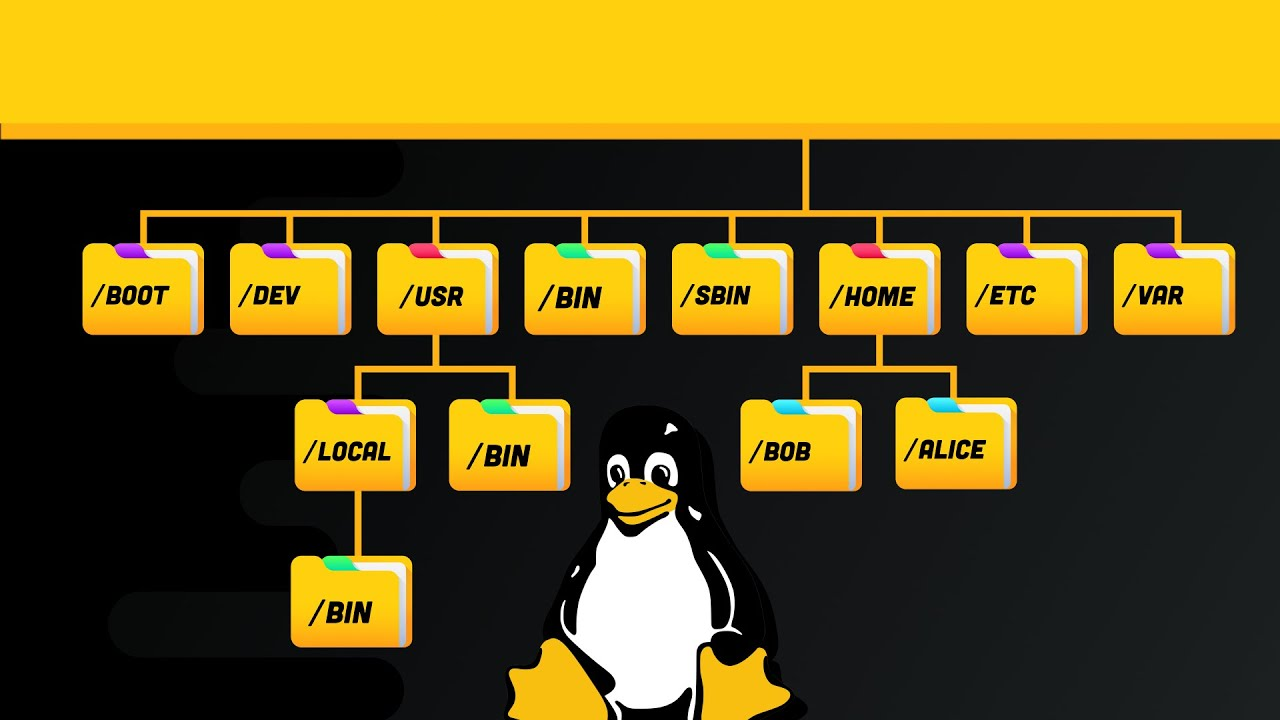
Linux File System
Previous: Everything in Linux is a file
What is partition?
We use partition to store different data in different harddisk regions. The regions can be managed separately. Partitioning can protect our data in other partitions if one of the partitions is corrupted accidentially.
There are two kinds of major partitions on a Linux system:
- data partition: normal Linux system data, including the root partition containing all the data to start up and run the system; and
- swap partition: expansion of the computer’s physical memory, extra memory on hard disk.
Most systems contain a root partition, one or more data partitions and one or more swap partitions.
The standard root partition ( / ) is about 100-500 MB, and contains the system configuration files, most basic commands and server programs, system libraries, some temporary space and the home directory of the administrative user. A standard installation requires about 250 MB for the root partition.

Swap space (indicated with swap) is only accessible for the system itself, and is hidden from view during normal operation. Swap is the system that ensures, like on normal UNIX systems, that you can keep on working, whatever happens. On Linux, you will virtually never see irritating messages like Out of memory, please close some applications first and try again, because of this extra memory. The swap or virtual memory procedure has long been adopted by operating systems outside the UNIX world by now.
How to create partitions?
The kernel is on a separate partition as well in many distributions, because it is the most important file of your system. If this is the case, you will find that you also have a /boot partition, holding your kernel(s) and accompanying data files.
The rest of the hard disk(s) is generally divided in data partitions, although it may be that all of the non-system critical data resides on one partition, for example when you perform a standard workstation installation. When non-critical data is separated on different partitions, it usually happens following a set pattern:
- a partition for user programs (/usr)
- a partition containing the users’ personal data (/home)
- a partition to store temporary data like print- and mail-queues (/var)
- a partition for third party and extra software (/opt)
Once the partitions are made, you can only add more. Changing sizes or properties of existing partitions is possible but not advisable.

On a server, system data tends to be separate from user data. Programs that offer services are kept in a different place than the data handled by this service. Different partitions will be created on such systems:
- a partition with all data necessary to boot the machine (/boot)
- a partition with configuration data and server programs (/opt)
- one or more partitions containing the server data such as database tables, user mails, an ftp archive etc. (/var)
- a partition with user programs and applications (/usr)
- one or more partitions for the user specific files (/home)
- one or more swap partitions (virtual memory)
Bootloader
amd64 systems use grub as the bootloader. amd64 systems can boot in either UEFI or legacy (sometimes called “BIOS”) mode (many systems can be configured to boot in either mode) and the bootloader is located completely differently in the two modes.
Legacy mode
The bootloader is read from the first “sector” of a hard drive (exactly which hard drive is up to the system firmware, which can usually be configured in a vendor specific way). The installer will write grub to the start of all disks selected as a boot devices. As Grub does not entirely fit in one sector, a small unformatted partition is needed at the start of the disk, which will automatically be created when a disk is selected as a boot device (a disk with an existing GPT partition table can only be used as a boot device if it has this partition).
UEFI mode
The bootloader loaded from a “EFI System Partition” (ESP), which is a partition with a particular type GUID. The installer automatically creates an 512MiB ESP on a disk when it is selected as a boot device and will install grub to there (a disk with an existing partition table can only be used as a boot device if it has an ESP – bootloaders for multiple operating systems can be installed into a single ESP). UEFI defines a standard way to configure the way in which the operating system is chosen on boot, and the installer uses this to configure the system to boot the just-installed operating system. One of the ESPs must be mounted at /boot/efi. Supported arm64 servers boot using UEFI, and are configured the same way as an UEFI-booting amd64 system.
Mount Points
All partitions are attached to the system via a mount point. The mount point defines the place of a particular data set in the file system. Usually, all partitions are connected through the root partition. On this partition, which is indicated with the slash (/), directories are created. These empty directories will be the starting point of the partitions that are attached to them.
During system startup, all the partitions are mounted, as described in the file /etc/fstab. Some partitions are not mounted by default, for instance if they are not constantly connected to the system, such like the storage used by your digital camera. If well configured, the device will be mounted as soon as the system notices that it is connected, or it can be user-mountable, i.e. you don’t need to be system administrator to attach and detach the device to and from the system.
On a running system, information about the partitions and their mount points can be displayed using the df command (which stands for disk free). In Linux, df is the GNU version, and supports the -h (human readable) option which greatly improves readability.
The df command only displays information about active non-swap partitions. These can include partitions from other networked systems, like in the example below where the home directories are mounted from a file server on the network, a situation often encountered in corporate environments.
linux:~> df -h
Filesystem Size Used Avail Use% Mounted on
/dev/hda8 496M 183M 288M 39% /
/dev/hda1 124M 8.4M 109M 8% /boot
/dev/hda5 19G 15G 2.7G 85% /opt
/dev/hda6 7.0G 5.4G 1.2G 81% /usr
/dev/hda7 3.7G 2.7G 867M 77% /var
fs1:/home 8.9G 3.7G 4.7G 44% /.automount/fs1/root/home
Depending on the system admin, the operating system and the mission of the UNIX machine, the file systems structure may vary, and directories may be left out or added at will. The names are not even required; they are only a convention.
The root
The tree of the file system starts at the trunk or slash, indicated by a forward slash ( / ). This directory, containing all underlying directories and files, is also called the root directory or “the root” of the file system.
Directories that are only one level below the root directory are often preceded by a slash, to indicate their position and prevent confusion with other directories that could have the same name. When starting with a new system, it is always a good idea to take a look in the root directory.
The /var
One of the main security systems on a UNIX system, which is naturally implemented on every Linux machine as well, is the log-keeping facility, which logs all user actions, processes, system events etc. The configuration file of the so-called syslogdaemon determines which and how long logged information will be kept. The default location of all logs is /var/log, containing different files for access log, server logs, system messages etc.
In /var we typically find server data, which is kept here to separate it from critical data such as the server program itself and its configuration files. A typical example on Linux systems is /var/www, which contains the actual HTML pages, scripts and images that a web server offers. The FTP-tree of an FTP server (data that can be downloaded by a remote client) is also best kept in one of /var’s subdirectories. Because this data is publicly accessible and often changeable by anonymous users, it is safer to keep it here, away from partitions or directories with sensitive data.
On most workstation installations, /var/spool will at least contain an at and a cron directory, containing scheduled tasks. In office environments this directory usually contains lpd as well, which holds the print queue(s) and further printer configuration files, as well as the printer log files.
On server systems we will generally find /var/spool/mail, containing incoming mails for local users, sorted in one file per user, the user’s “inbox”. A related directory is mqueue, the spooler area for unsent mail messages. These parts of the system can be very busy on mail servers with a lot of users. News servers also use the /var/spool area because of the enormous amounts of messages they have to process.
The /var/lib/rpm directory is specific to RPM-based (RedHat Package Manager) distributions; it is where RPM package information is stored. Other package managers generally also store their data somewhere in /var.
Block device
In a computer, data are stored on a hard drive. Your hard drive has a capacity, let’s say 1 TB, and it is divided into multiple blocks of a given capacity.

If I launch a fdisk command on my system, it shows that the HDD is separated into sectors of 512 bytes. There are a lot of sectors in the HDD, as the HDD has a capacity of 2.0 TB.
Disk /dev/sdc: 2000.4 GB, 2000398934016 bytes
255 heads, 63 sectors/track, 243201 cylinders
Units = cylinders of 16065 * 512 = 8225280 bytes
Sector size (logical/physical): 512 bytes / 512 bytes
I/O size (minimum/optimal): 512 bytes / 512 bytes
Disk identifier: 0x40bab849
   Device Boot      Start         End      Blocks   Id  System
Now everytime that I create a file, it will be stored on a block. If the file size exceeds 512 bytes, the file will be “fragmented” and stored into multiple different blocks.

If the different pieces of your file are physically far away from each other on the disk, the time needed to build your file will obviously be longer. That’s why you had to defragment your disk on Windows systems for example, you were essentially making related blocks closer.
Linux system does not have to read the entire disk to get your file, it will cherry-pick some block addresses that correspond to your file data.
inode
Inside the kernel, a file is represented by a data structure called an index-node or inode which hold file meta-data: owner, permissions, reference count, etc. and most importantly the block addresses of this file on the disk.
This is how Linux references are kept to the underlying data stored in the disk. So in the Linux file system, one inode equals one file.


Files and Filenames
On a Linux system, filenames are not part of the inode. They are kept on a separate index. This separate index keeps track of all the different filenames existing on your system (even directories) and they know the corresponding inode in the inode index. It means that you can have multiple filenames (say “doc.txt” and “paper.txt”) pointing to the same exact file, sharing the same content.

Directory
Directory is (just) a file which maps filenames to i-nodes — that is, it has its own i-node pointing to its contents.
An instance of a file in a directory is a (hard) link hence the reference count in the inode. Directories can have at
most 1 (real) link. Also get soft- or symboliclinks: a ‘normal’ file which contains a filename.

A disk consists of a boot block followed by one or more partitions. Very old disks would have just a single partition. Nowadays have a boot block containing a partition table allowing OS to determine where the filesystems are.
Figure shows two completely independent filesystems; this is not replication for redundancy.

Also note |inode table| >> |superblock|; |data blocks| >> |inode table|

Additional Reading: Master Boot Record (MBR) and GPT(GUID partition table)
Soft Link
Soft links, also called symbolic links, are files that points to other files on the filesystem.
Similar to shortcuts on Windows or MacOS, soft links are often used as faster ways to access files located in another part of the filesystem (because the path may be hard to remember for example).
Symbolic links are identified with the filetype “l” when running a ls command. They also have a special syntax composed of the link name and an arrow pointing to the file they are referencing.
The permission of the soft links are set to “rwx” by default for the user, the group and the others.
However, you would be constrained by the permissions of the file if you were to manipulate this file with another user.
Soft links and inode
$ stat shortcut
  File: shortcut -> file.txt
  Size: 3               Blocks: 0          IO Block: 4096   symbolic link
Device: fc01h/64513d    Inode: 258539      Links: 1

$ stat file.txt
  File: job
  Size: 59              Blocks: 8          IO Block: 4096   regular file
Device: fc01h/64513d    Inode: 258545      Links: 2
The inodes are different. However, the original file inode is pointing directly to the file content (i.e the blocks containing the actual content) while the symbolic link inode is pointing to the blocks containing the path to the original file.
The file and the shortcut share the same content. It means that I were to modify the content of the soft link, the changes would be passed on to the content of the file.
If I delete the soft link, it will simply delete the reference to the file inode. As the file inode still references the content of the file on the disk, the content won’t be lost.
However, if I were to delete the file, the symbolic link would lose its reference to the file inode. As a consequence, you would not be able to read the file anymore.
This is what we call a dangling symbolic link, a link that is not pointing to anything. Terminal gives visual clues that a symbolic link is a dangling symbolic link.
The size of the soft link equals to its filename.
Hard Link
Hard links to a file are instances of the file under a different filename on the filesystem. Unlike soft links, hard links are constrained to the limits of your current filesystem and you cannot create hard links for directories, the hard links for other filesystems and also the remote filesystems (e.g. NFS).
Hard links are literally the file, meaning that they share all the attributes of the original file, even the inode number.
It is sharing the same content as the original file and it is also sharing the same permissions. Changing permissions of the original file would change the permissions of the hard link.
Hard links and inode
$ stat hardlink
  File: hardlink
  Size: 59              Blocks: 8          IO Block: 4096   regular file
Device: fc01h/64513d    Inode: 258545      Links: 2

$ stat file.txt
  File: file.txt
  Size: 59              Blocks: 8          IO Block: 4096   regular file
Device: fc01h/64513d    Inode: 258545      Links: 2
The inodes are the same, but the filenames are different!
When you are creating a symbolic link, you are essentially creating a new link to the same content, via another inode, but you don’t have access to the content directly in the link.
When creating a hard link, you are literally directly manipulating the file. If you modify the content in the hard link file, the content will be changed in the original file.
Similarly, if you modify the content in the original file, it will be modified in the hard link file.
However, if you delete the hard link file, you will still be able to access the original file content.
Similarly, deleting the original file has no consequences on the content of the hard link.
Data are definitely deleted when no inodes point to it anymore.

Copying vs Creating Hard Link
The difference between copying and hard linking is that hard-linking does not duplicate the content of the file that it links to.
When you are copying a file, you are essentially assigning new blocks on the disk with the same content as the original file. Even if you share the same content with hard-linking, you are using disk space to store the name of the original file, not the actual content of the file.

To create symbolic link:
$ ln -s file shortcut

$ ls -l
-rw-rw-r-- 1 schkn schkn 0 Aug 14 20:12 file
lrwxrwxrwx 1 schkn schkn 4 Aug 14 20:12 shortcut -> file

$ mkdir folder
$ ln -s folder shortcut-folder

$ ls -l
drwxrwxr-x  2 schkn schkn   4096 Aug 14 20:13 folder
lrwxrwxrwx  1 schkn schkn      7 Aug 14 20:14 shortcut-folder -> folder/
To remove symbolic link:
$ rm shortcut

$ ls -l
-rw-rw-r-- 1 schkn schkn 0 Aug 14 20:12 file

$ unlink shortcut

$ ls -l
-rw-rw-r-- 1 schkn schkn 0 Aug 14 20:12 file
To create hard link:
$ ln file hardlink

$ ls -l
-rw-rw-r--  2 schkn schkn      0 Aug 14 20:12 file
-rw-rw-r--  2 schkn schkn      0 Aug 14 20:12 hardlink
To remove hard link:
$ ln file hardlink
$ unlink hardlink
$ ls -l
-rw-rw-r--  2 schkn schkn      0 Aug 14 20:12 file
To find links in a system:
$ find . -type l -ls
262558      0 lrwxrwxrwx   1 schkn    schkn           7 Aug 14 20:14 ./shortcut-folder2 -> folder2/
.
.
.
262558      0 lrwxrwxrwx   1 schkn    schkn           7 Aug 14 20:14 ./shortcut-folder -> folder/

$ find . -maxdepth 1 -type l -ls
262558      0 lrwxrwxrwx   1 schkn    schkn           7 Aug 14 20:14 ./shortcut-folder -> folder/
258539      0 lrwxrwxrwx   1 schkn    schkn           3 Jan 26  2019 ./soft-job -> job

$ ls -l
drwxrwxr-x  2 schkn schkn   4096 Aug 14 20:13 folder
lrwxrwxrwx  1 schkn schkn      7 Aug 14 20:38 softlink -> folder/

$ find . -lname "fold*"
./softlink

$ find -L . -type l -ls
258539      0 lrwxrwxrwx   1 schkn    schkn           3 Jan 26  2019 ./broken-link -> file
https://www.cl.cam.ac.uk/teaching/1920/OpSystems/pdf/11-Case-Study-Unix.pdf
https://devconnected.com/understanding-hard-and-soft-links-on-linux/
https://tldp.org/LDP/intro-linux/html/sect_03_02.html
http://www.compsci.hunter.cuny.edu/~sweiss/course_materials/unix_lecture_notes.php